Quote Model Setup Form
With the quote
model setup form you can create the structure of the quote
model.
Calculation centers can appear only once in a quote structure,
but cost elements can be as many as needed for each
calculation center.
If you might need more calculation centers with the same cost
structure or calculation, you need to create a new calculation
center with a different name.
Model selection
From the model selector combobox, you can select any prepared
models. Simply open the drop down list and select the model
from it, than click on the selected line.
Once the model selected, the structure of the model appears in
the model tree and you can go through the tree.
Only those models can be edited, which are not yet used in a
quote.
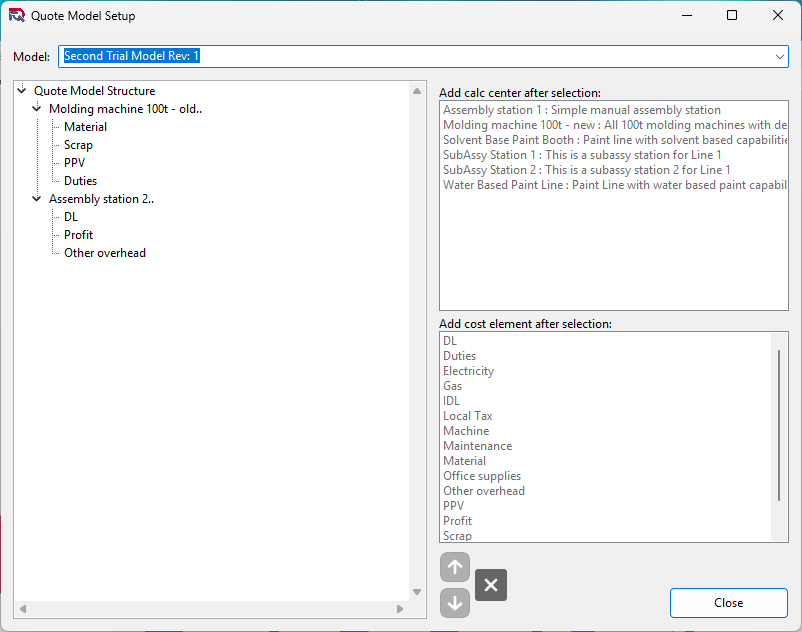
Picture of the Quote Setup Form
Building up the quote model structure
There are two levels of a quote structure, calculation
center and cost element.
Calculation Centers
Calculation centers are elements the quote which are related to the steps of creating a product or steps of having a service provided.
These calculation centers should follow the steps in a logical order as the price calculation is following this order as well. As you can see in the calculation setup form, you can refer to calculation result, which is above the current calculation, but you cannot refer to a later one. This rule is defined to avoid circular references in the calculation.
Calculation centers can be built up using different cost elements. The structure within calculation centers can be different and the order of cost elements is not restricted, so depends on the structure of the operations, you can define this to follow the logical steps of cost occurrences.
Cost elements
Cost elements should represent the financial elements, which are followed individually by the controlling organization of your company. These can be such elements like machine operational cost (typically based on a machine rate), direct labour costs, etc..., but for a price calculation adders, like tax, duty, delivery costs of materials, profit, etc... should be represented as cost element as well.
To build up the model select row after which you want to add the element and double click the element in the Add calc center... or the Add cost element... list. Of course you need to setup these elements as described in the previous sections.
If you selected a calculation center line, you can add a
calculation element, and cost elements as well, except if
you have selected the Quote Model Structure element of the
tree, because in this case you can only insert a calculation
element in front of the others. If you selected a cost
element, than you can only add a cost element after the
selected one.
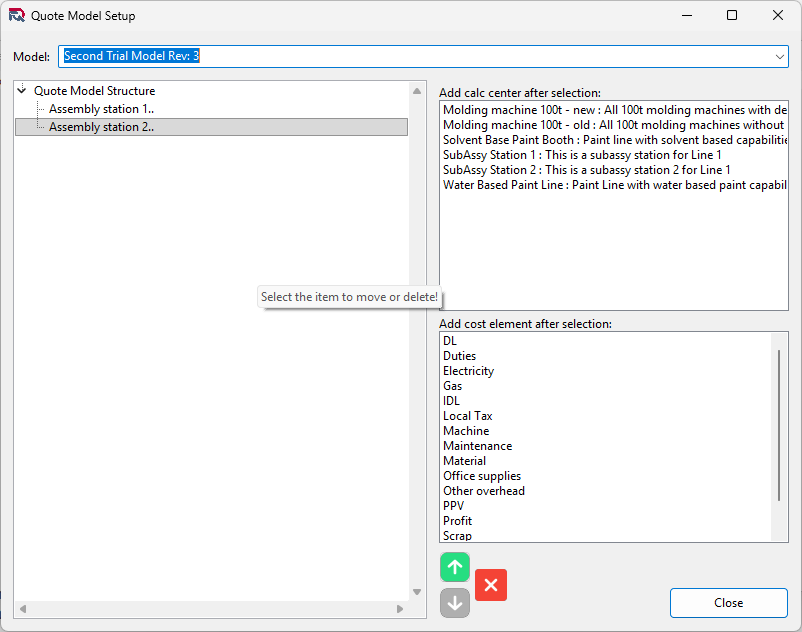
If you want to reorganize the elements or want to delete an
element, you can do it with the arrow and the X buttons. If
you delete am element, the related quote model calculation
elements are also deleted. As this action is not reversible,
so deleted items need to be recreated completely. To avoid
deletion by mistake the application warns the user the confirm
again the deletion action.