Quote Calculation Form
On the Quote Calculation form you can define the calculation
method for your quote, base on the quote structure setup. All
defined cost elements should be completed with the calculation
formula to be able to create a quote from the calculation
model. If the definition is not complete, a quote cannot be
created or updated and the calculation cannot run on the quote
form.
Elements of the Quote
Calculation Form.
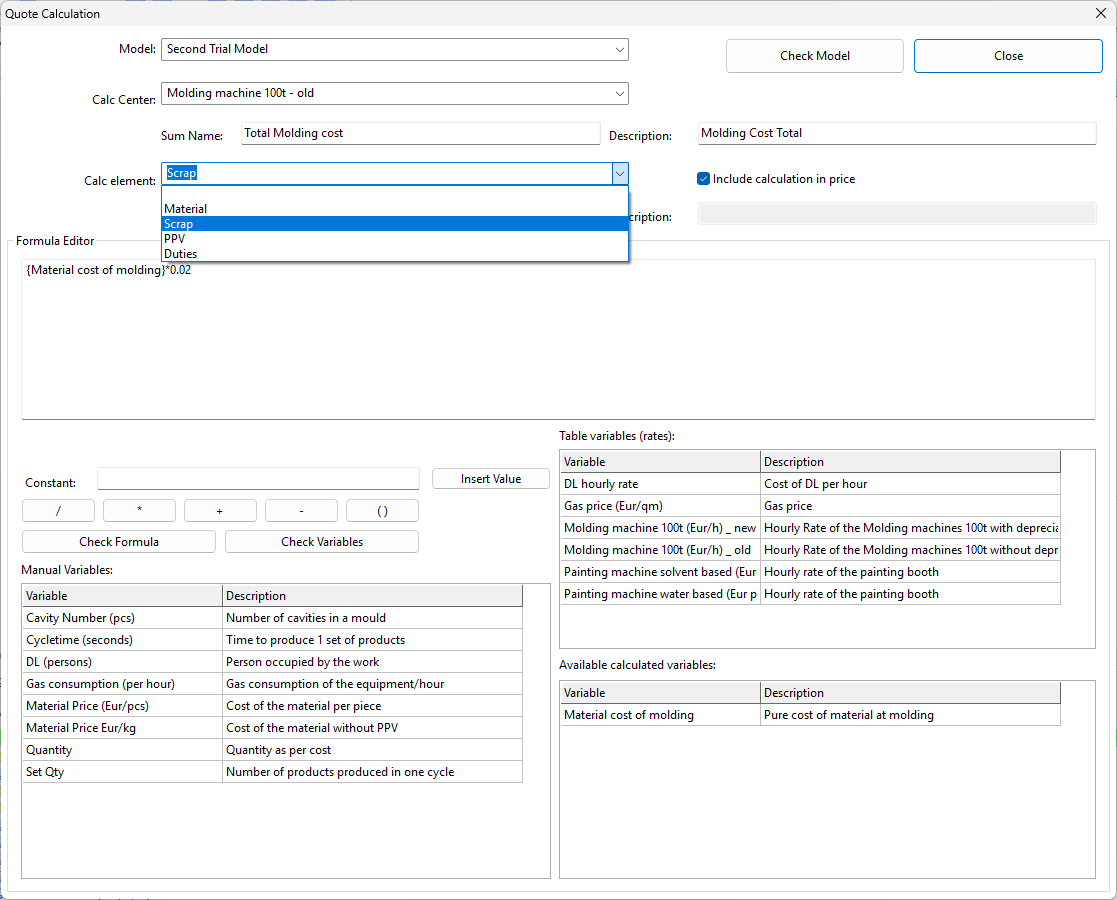
There are four things, which you can define on this form.
- Calculation Sum Name and Description: The Calculation sum name should be defined in case you want to use the result of the calculation center elements in further calculation in other calculation centers or cost elements. Calculation center sums cannot be used in the same calculation center as it would lead to circular reference. Description can be added to explain better this element if needed.
- Calc Element Sum Name and Description: The calc or cost element calculation can be defined as a variable for further calculations. These sum names can be used from the next cost element within the same calculation center and in the following calculation centers as well, but not in earlier ones to avoid circular references.
- Include calculation in price: If the cost element is detailing a previous calculation, so it is only used a s backward calculation, like portion of a cost calculated earlier, than it will appear in the calculation form, but the result will not be included in the calculation center sum cost result.
- Formula Editor: In the formula editor you can define the calculation itself. You can use an excel like calculation line, using constants, variables (manual, table or calculated), operators and functions. Negative constants cannot be used simply adding the minus sign in front of the number, but a "neg()" function will represent the negative number in the calculation.
To verify if the calculation formula is correct, you can use
the Check Formula button. To check the complete quote setup,
use the Check model button. When you check the formula only,
the result will appear below the formula editor. If you check
the full model, it will pop up a Model Tree view like this:
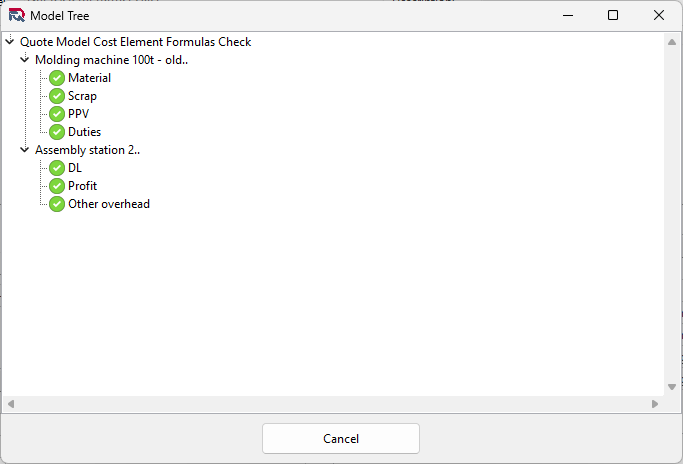
You can use the model tree lines to navigate to the
cost element to edit it directly. So instead of clicking
through each calculation centers and the cost elements after
each other, you can simple click on the Check model button,
once the model is selected from the model selector combobox
and than double click on the cost element in the model tree.
This will close the model tree view and jumps to the selected
cost element on the form.
Saving the calculation
The edited calculations are saved automatically, whenever you
move to another calculation center, cost element or clicking
on the Check formula, Check Model or Check Variables button.
There is no undo action, so only edit the formulas if you know
what you are doing.